PCAP 01
To get started, you will need to install Wireshark to inspect of the network dump provided.
In this challenge, you can download the PCAP file using the following link: pcap_01.pcap
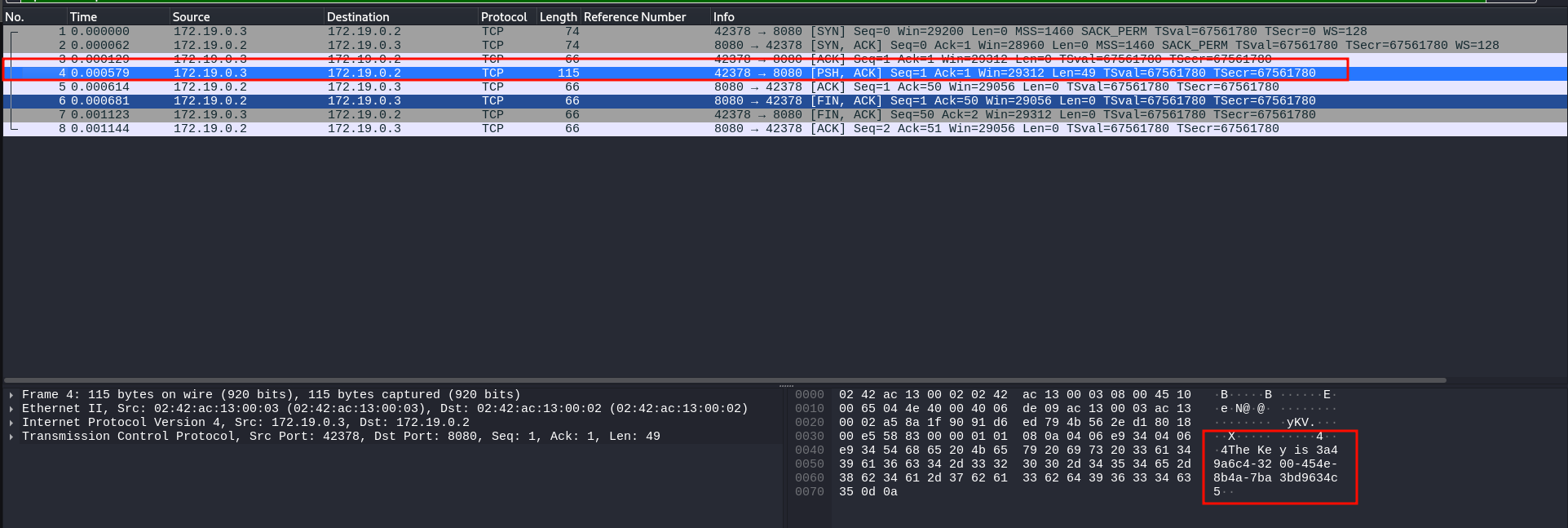
In this challenge, the file contains only a single TCP connection from the client to the server. The client connects to the server and write the following string:
The key is ....
Using Wireshark, you can open the file. Once the file is loaded, you should be able to right-click and select "Follow" -> "TCP Stream".
This command will open a new window with the full TCP connection. This command basically reconstructs the connection so you can inspect the data without worrying about the lower layers (IP and ARP).

PCAP 02
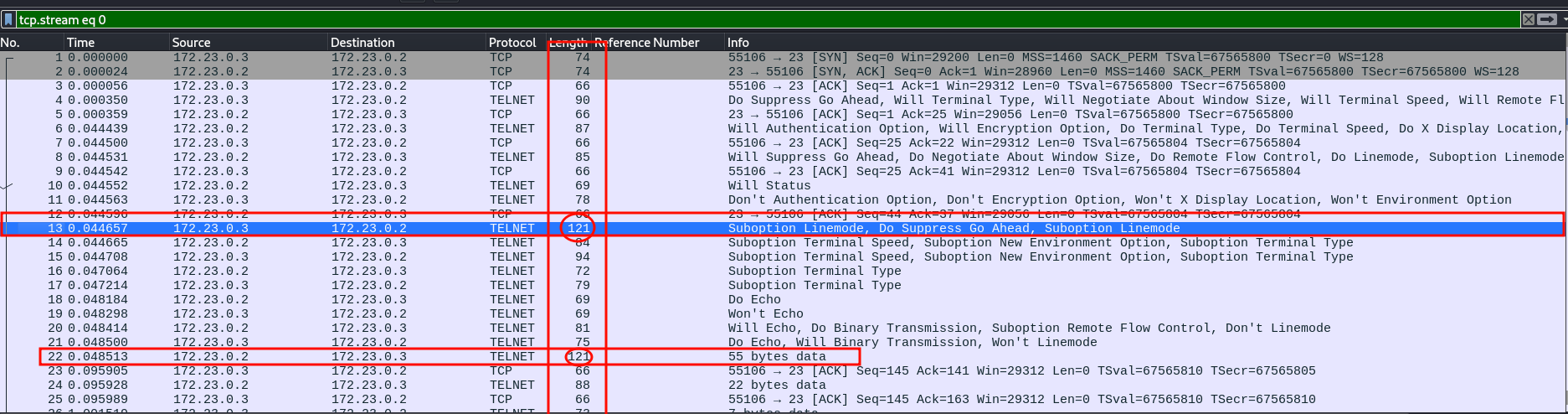
In this challenge, the file only contains the TCP connection of a user connecting to a server using telnet. Connecting with telnet is insecure as anyone who can see the traffic, or access a packet capture of the connection is able to see the username and password used as well as all the commands that the user executed.
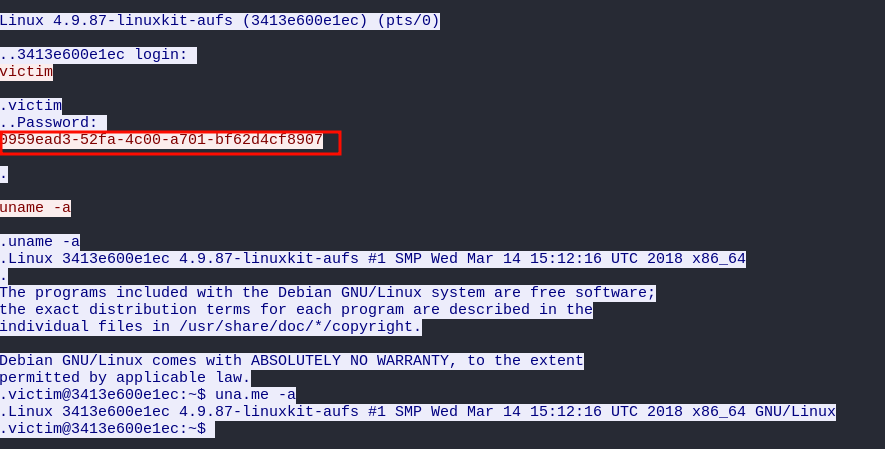
The interesting part here is that you should see the difference in color
between the data coming sent by the server and the data sent by the
client. You should see the server sending a banner (with the version of
the Linux Kernel) and a prompt with Login:. Then you should see the response from the client. The server is then asking for the Password.
The client provides the password (The key to solve this exercise).
Finally, you can see the Debian Message-of-the-Day (MOTD) and the
command ran by the user.
PCAP 03
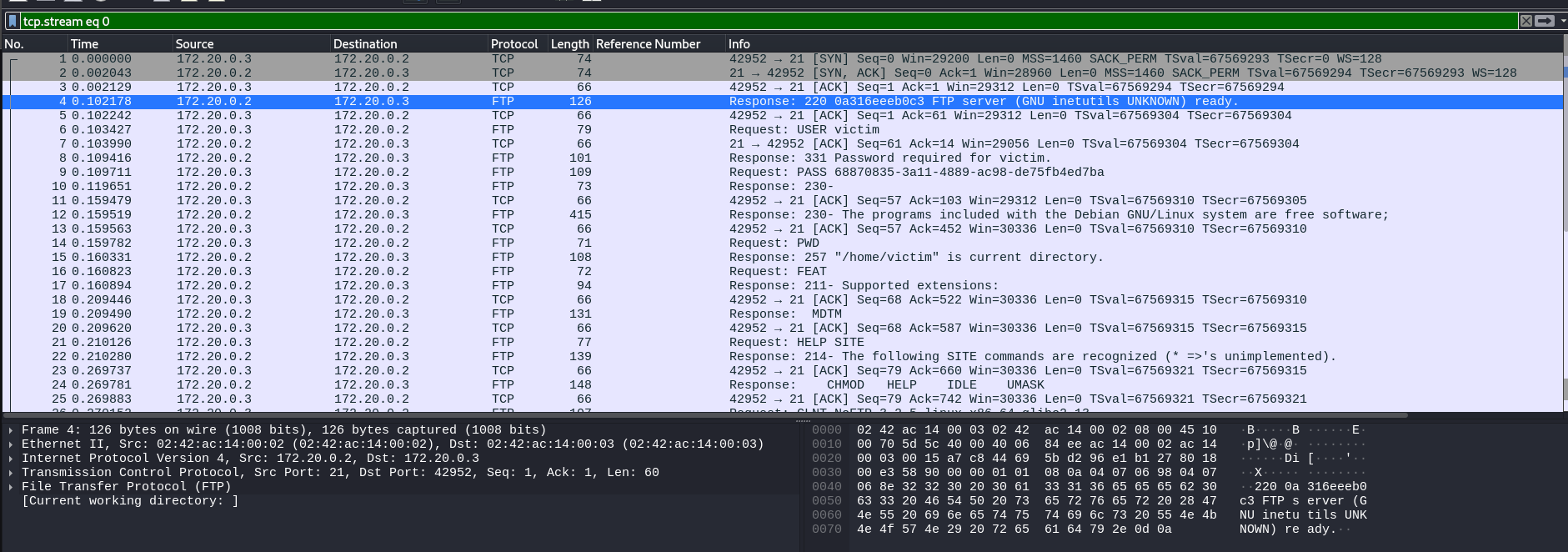
In this challenge, the file only contains the TCP connection of a user connecting to a server using FTP. Connecting with FTP without TLS is insecure as anyone who can see the traffic, or access a packet capture of the connection is able to see the username and password used as well as all the files retrieved by the user.
We can just filter by ftp protocol:
PCAP 04
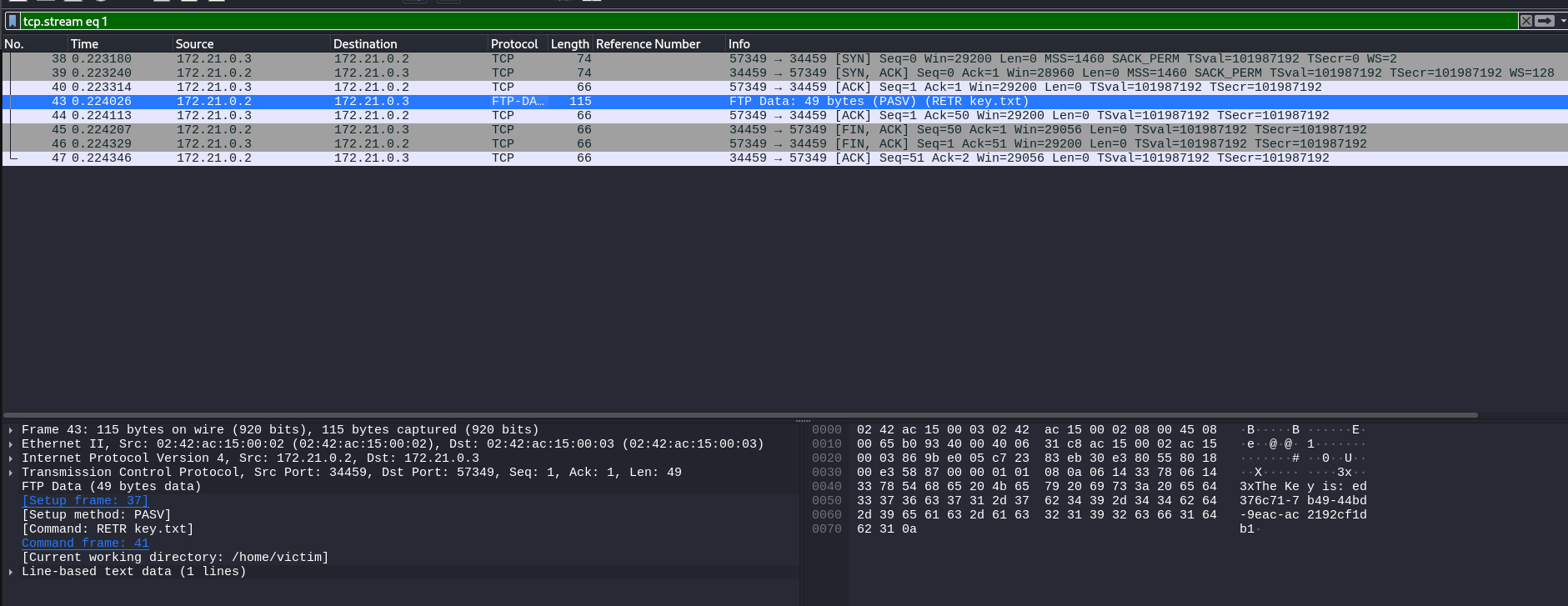
In this challenge, the file only contains the FTP connection of a client retrieving a file in passive mode. The retrieval of the file happens in two stages/TCP connections:
- The client authenticates and tells the server what file it wants to retrieve followed by the
PASVcommand. The server will send back an IP address and port to the client. You can see the port and IP by inspecting the packet after thePASVcommand. You will need to explore the content of the packet to see the IP and port. - The client connects to that IP and port to retrieve the file.
First we can filter by ftp, then we look for any packet containing PASV command

Now we have ip address:
172.21.0.2
Now we need to change [tcp.stream](http://tcp.stream) eq 0 to 1 so that we can move to the next request
PCAP 05
This challenge is identical to the previous one but a bit of noise has been added to make finding the right packet a bit more complex.
tcp.stream eq 1
Then follow tcp stream of any PASV request
PCAP 06
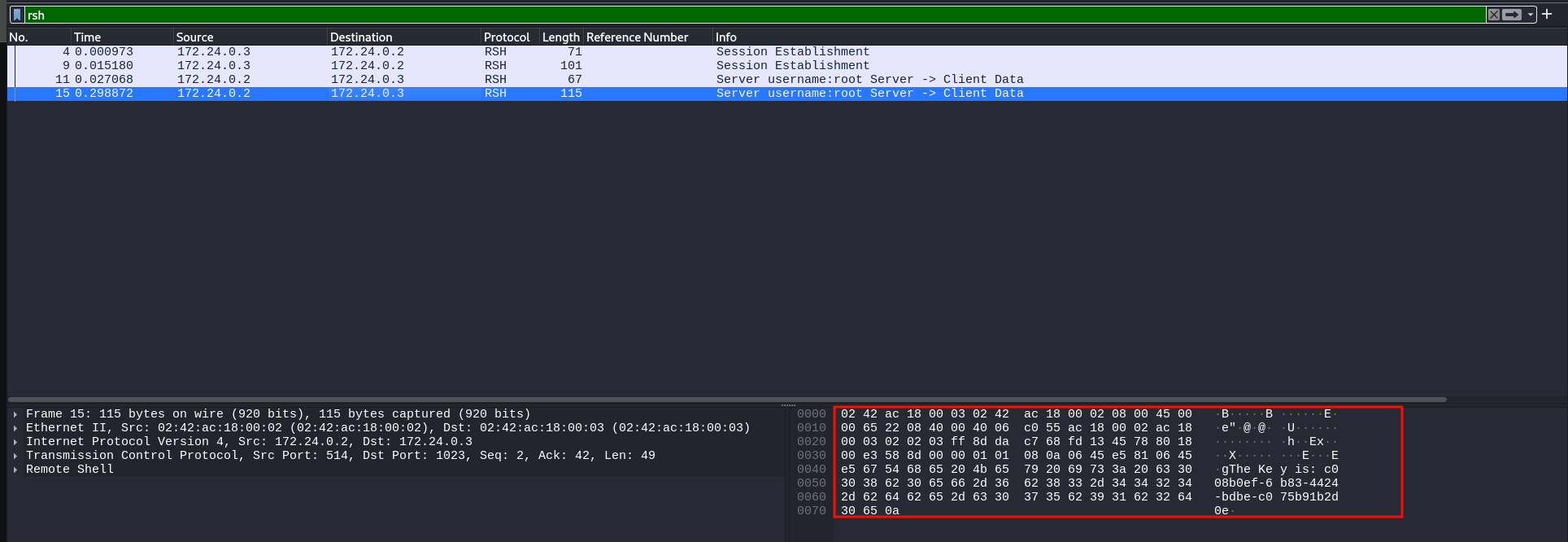
In this challenge, the file contains the connection of the root user to a server using rsh The client is the server is performed by creating a .rhosts file on the server with the IP of the client. This is obviously very insecure
We can just filter with RSH
PCAP 07
In this challenge, the file contains a rlogin connection to a sever. Connecting to a server using rlogin is insecure as the credentials are transmitted in cleartext. By inspecting the packets, you should be able to get the password used to log in
When we filter with rlogin

PCAP 08
In this challenge, the file contains the network traffic captured during a SMTP connection to send an email. By inspecting the TCP connection you will see that the user provides a username and password to log in (they are both base64 encoded as part of the protocol).
You should see the following exchange:
AUTH LOGIN
334 VXNlcm5hbWU6
dmljdGlt
334 UGFzc3dvcmQ6
[...]
Where:
AUTH LOGINis the client telling the server it wants to log inVXNlcm5hbWU6is the base64 ofUsername:dmljdGltis the base of the username.UGFzc3dvcmQ6is the base64 ofPassword:
We filter with smtp :
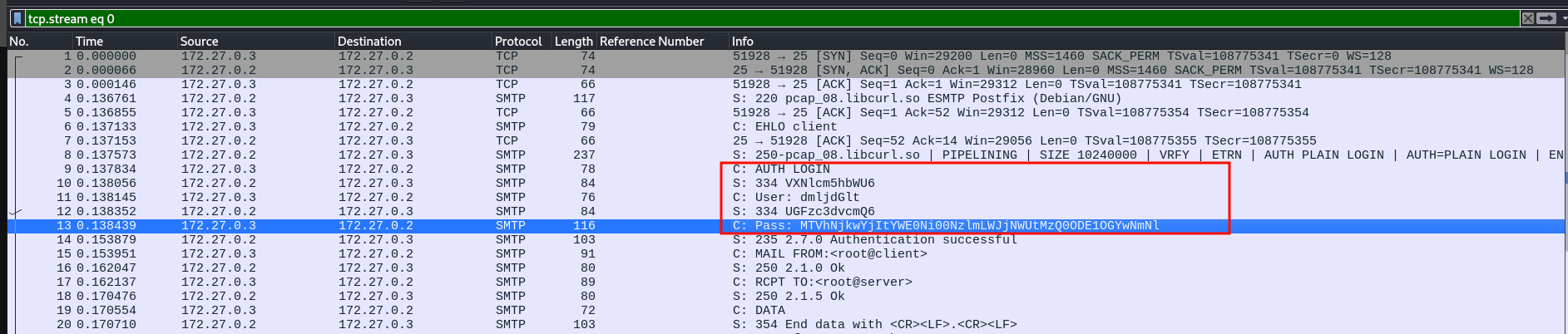
We get the password and now we can decode it from base64
PCAP 09
In this challenge, you should be able to retrieve an email sent to a @pentesterlab.com address. Once you retrieve the recipient, you should get the key.

PCAP 10
In this challenge, you should be able to retrieve an email. You should see that this email contains an attachment.
You can get the content of the attachment in two ways:
- Save the full email as a
.emlfile and open it with your favorite client. - Save the attachment part (
begin...end) and decode it usinguudecode.
ech06➜ Downloads ᐅ uudecode pt.eml
PCAP 11
In this challenge, you should be able to retrieve a POP3 login from an email client, You should find the username ans password as part of the network dump.

PCAP 12
In this challenge, you should be able to retrieve an IMAP login from an email client. You should find the username and password as part of the network dump.

PCAP 13
In this challenge, the file contains only a single HTTP request. The key is available as a GET parameter.

PCAP 14
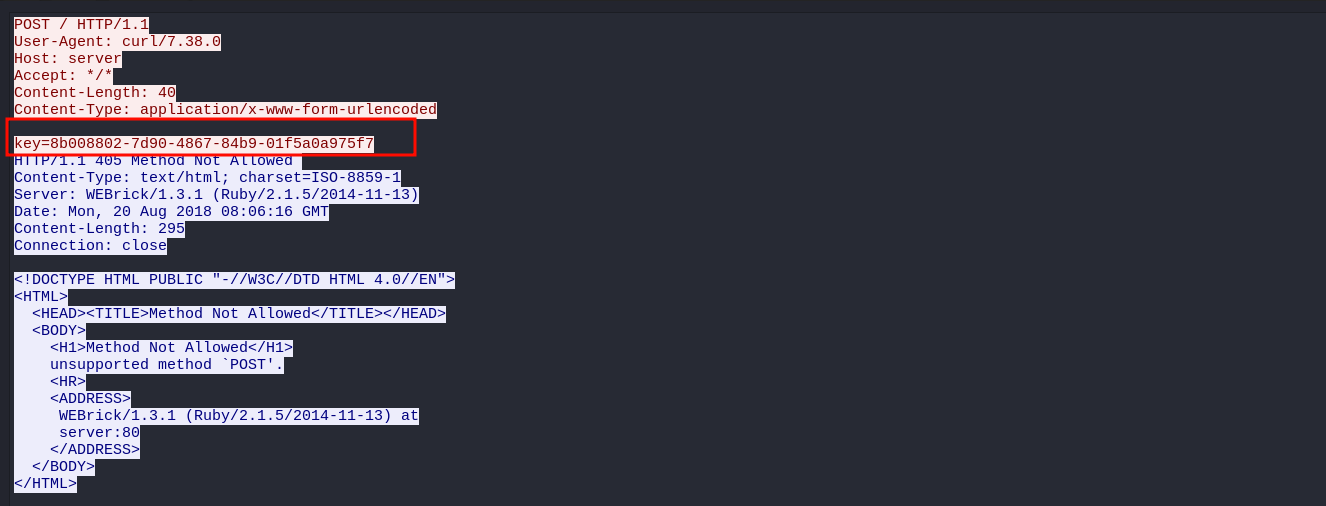
In this challenge, the file contains only a single HTTP request. The key is available as a POST parameter. One interesting thing to notice is that the header Content-Length contains the actual size of the body. This is the information the server uses to know how much data it should read from the TCP socket.

PCAP 15
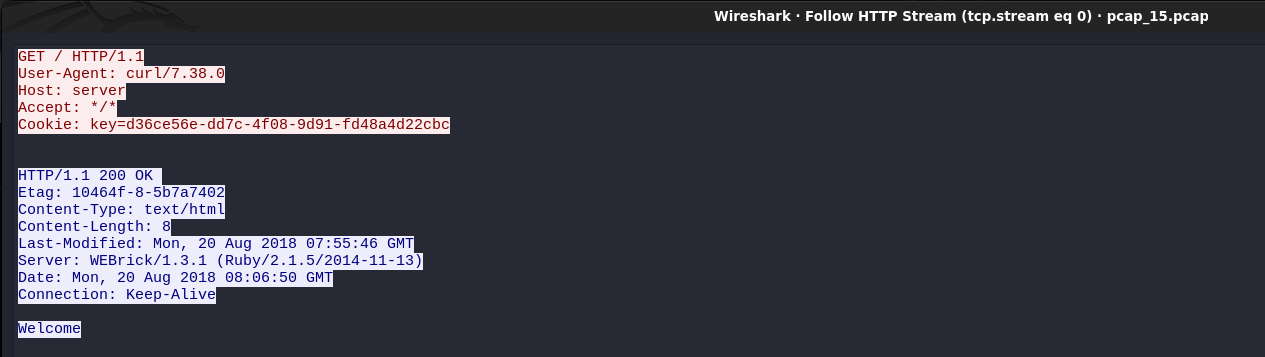
In this challenge, the file contains only a single HTTP request. The key
is available as a cookie. You can find the cookie by inspecting the
header and looking for the line starting with Cookie:. Then you will see on the same line the cookies. The format is as follow:
key1=value1; key2=value2

PCAP 16
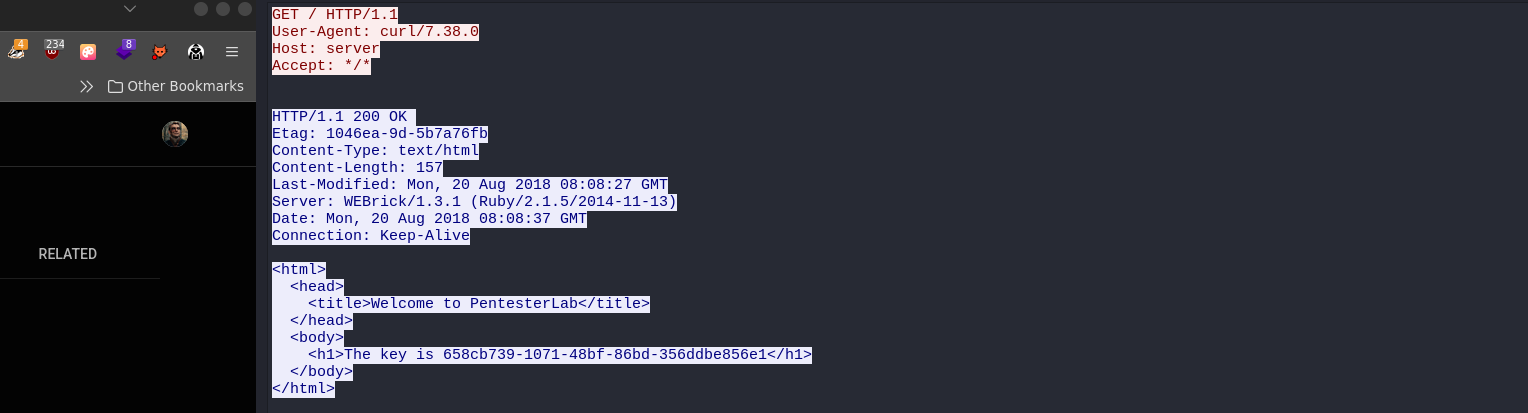
In this challenge, the file contains only a single HTTP request. The key is available in the body of the response as part of the HTML code.

PCAP 17
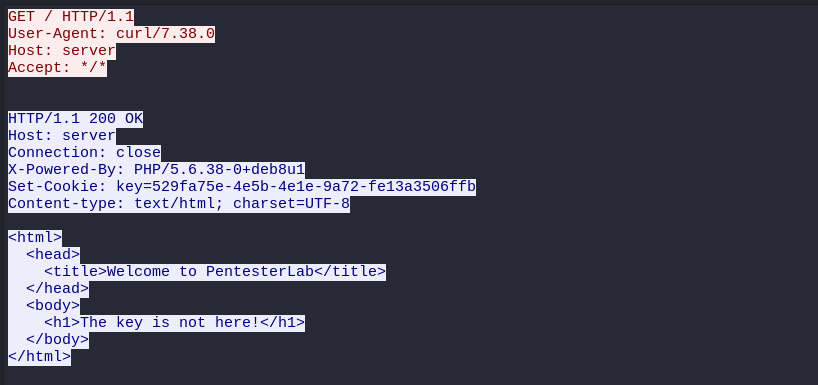
In this challenge, the file contains only a single HTTP request. The key is available in the Set-Cookie header from the response.
PCAP 18
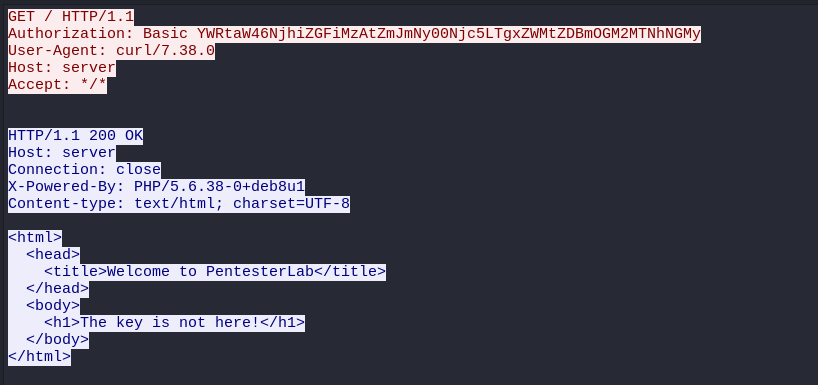
In this challenge, the file contains only a single HTTP request. The key is available in the Authorization header of the request. The credentials are provided using Authorization Basic. The username and password are concatenated using a : and base64 encoded. The key is the password used.
PCAP 19
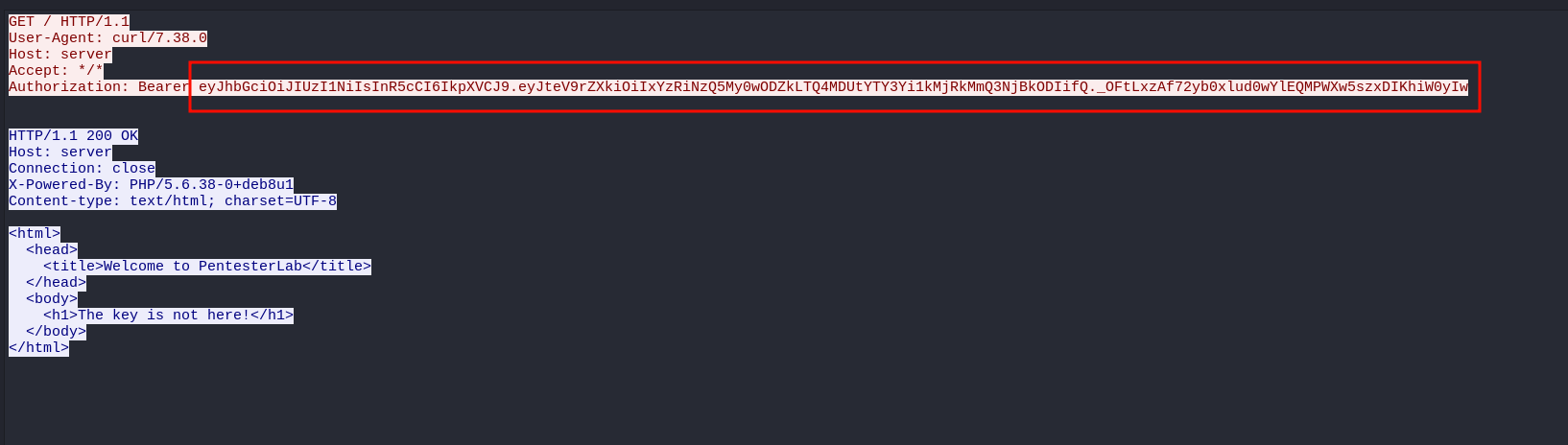
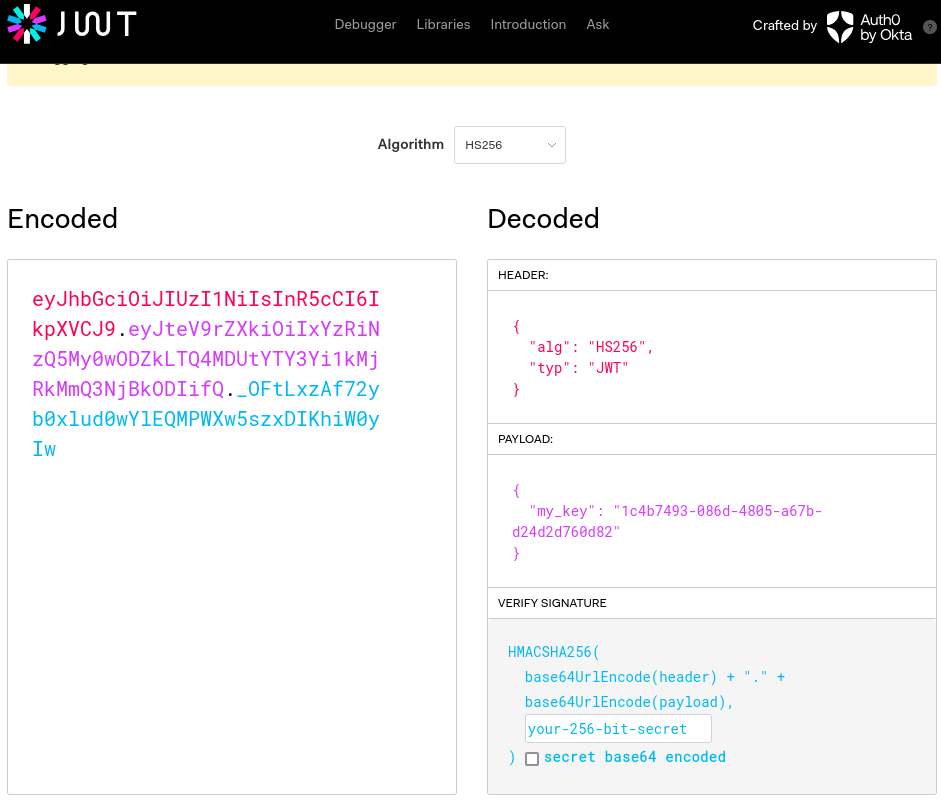
In this challenge, the file contains only a single HTTP request. The key is available in the Authorization header of the request. The credentials are provided using a Bearer token. The token is using the JSON Web Token (JWT) format. The format used follows this patterns:
- The header.
- a dot
. - The payload.
- a dot
. - The signature.
The key is stored as part of the payload. The payload is base64 encoded and stored in JSON. Using this information you should be able to get the key.
PCAP 20
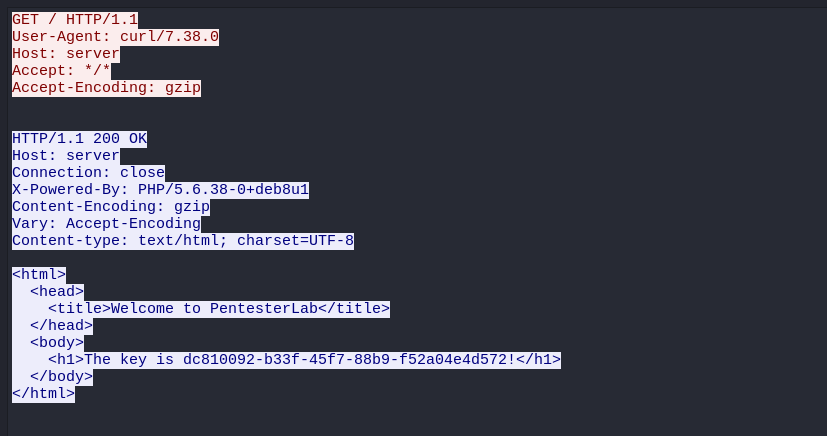
In this challenge, the file contains only a single HTTP request. The key is available in the body of the response as part of the HTML code. However, this time, the response is gzip-compressed. This compression is used to limit the amount of data that needs to be transferred.
Wait, just like that?
PCAP 21
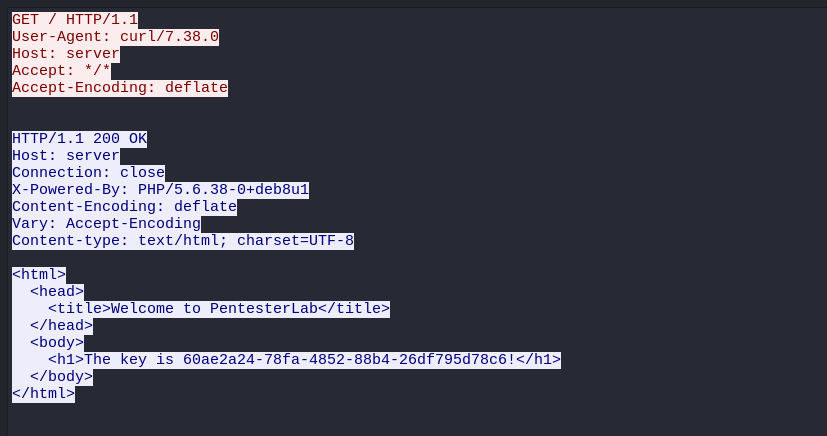
In this challenge, the file contains only a single HTTP request. The key is available in the body of the response as part of the HTML code. However, this time, the response is deflated. This compression is used to limit the amount of data that needs to be transferred.
Using Wireshark, you can open the file. Once the file is loaded, you should be able to right-click and select "Follow" -> "TCP Stream".
This command will open a new window with the full TCP connection. This
command basically reconstruct the connection so you're able to inspect
the data without having to worry about the lower layer (IP and ARP).
Then, you need to select "Show and save data as"
and select "RAW", then you can click on the "Save as..." button. Once
you have the file saved, you can edit it to remove everything aside from
the body of the response (located after the last header). Finally, you
can save the file and run gunzip on it to
decompress the content and get the key. However, since the content is
deflate instead of simply gzip, you will need to add some magic bytes to
the response to get gunzip working:
PCAP 22
In this challenge, the file contains only a single HTTP request. The
key is available in the body of the response as part of the HTML code.
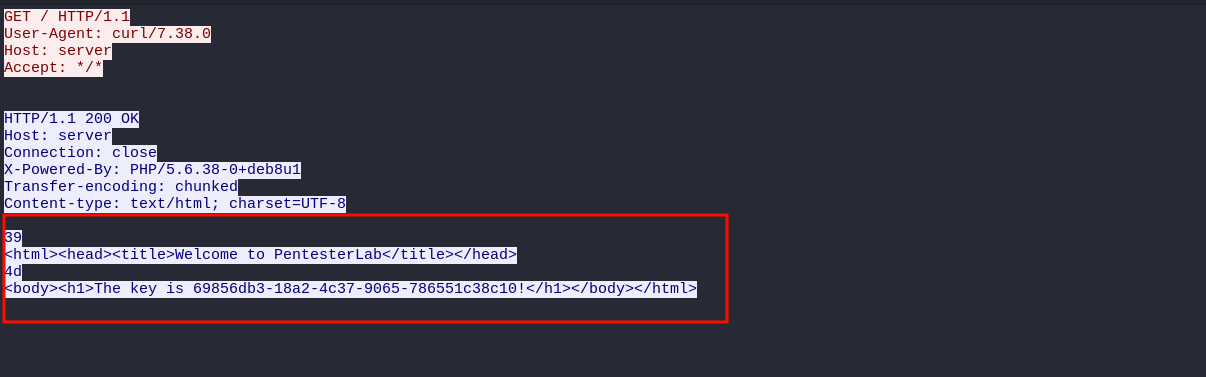
However, this time, the response is chunk-encoded. This doesn't really
change your ability to see the key. But you can observe that there is no
Content-Length header and some
hexadecimal number in the body. The idea behind chunk-encoding is that
the server can send content without waiting for the full response to be
ready. The server sends the size of a chunk (in hexadecimal) followed by
the chunk.

PCAP 23
In this challenge, the file only contains two HTTP requests and
responses. The key is available as a parameter of the second request.
Both requests (and responses) use the same underlying TCP connection
thanks to the use of Connection: keep-alive.

PCAP 24
In this challenge, the file contains only a single DNS query and the
matching answer. You can see that this time UDP is used. You can still
inspect the traffic to get the key in both the query and the answer. In
this sample, the client asks for an A record to get the IP address corresponding to a given hostname (the hostname being the key to solve this exercise).

PCAP 25
In this challenge, the file contains only a single DNS query and the
matching answer. You can see that this time TCP is used. You can still
inspect the traffic to get the key in both the query and the answer.
It's a very common misconception that DNS traffic only happens using
UDP. Here we can see that it can also work using TCP. If you're using dig, you can use the option +tcp to force your client to use TCP instead of UDP

PCAP 26
In this challenge, the file contains only a single DNS query and the
matching answer. You can see that this time UDP is used. You can still
inspect the traffic to get the key in both the query and the answer.
This time, the client doesn't ask for a A record to get an IP, it asks for a TXT record, and you can get the key in the answer from the server.

PCAP 27
In this challenge, the file contains multiple DNS packets. One common issue with IoT devices is that they use a predictable transaction ID (a random number). The transaction ID is used to protect the client from an attacker sending malicious response. Since the attacker may not be able to intercept the query (for example if the attacker is on the same network but not in the middle), the attacker cannot predict the transaction ID and respond with a valid response. IoT devices can suffer from one of the following issues:
- Using a transaction ID that is fixed (for example only 0).
- Using a transaction ID that is very predictable (Or incremental).
- Not checking the transaction ID from the response to ensure it's the one matching the query they sent.
In this example, we will cover the first case (fixed transaction ID set to 0. You need to find the DNS query with the right transaction ID and the hostname is the key to solve this exercise (without the domain).

PCAP 28
In this challenge, the file contains multiple DNS packets. We can see that an attacker is trying to inject DNS response but the attacker cannot predict the transaction ID. You need to find the response matching the query from the actual client.

PCAP 29
In this challenge, the file contains an ICMP request and reply (a "ping"). ICMP can be used as a covert channel to send information from one system to another without raising alarms. Here the key to solve this exercise is embedded in the ICMP request.
BBE@@"/ecf76ba6-68c7-4039-9b9b-407167fe2757
PCAP 30
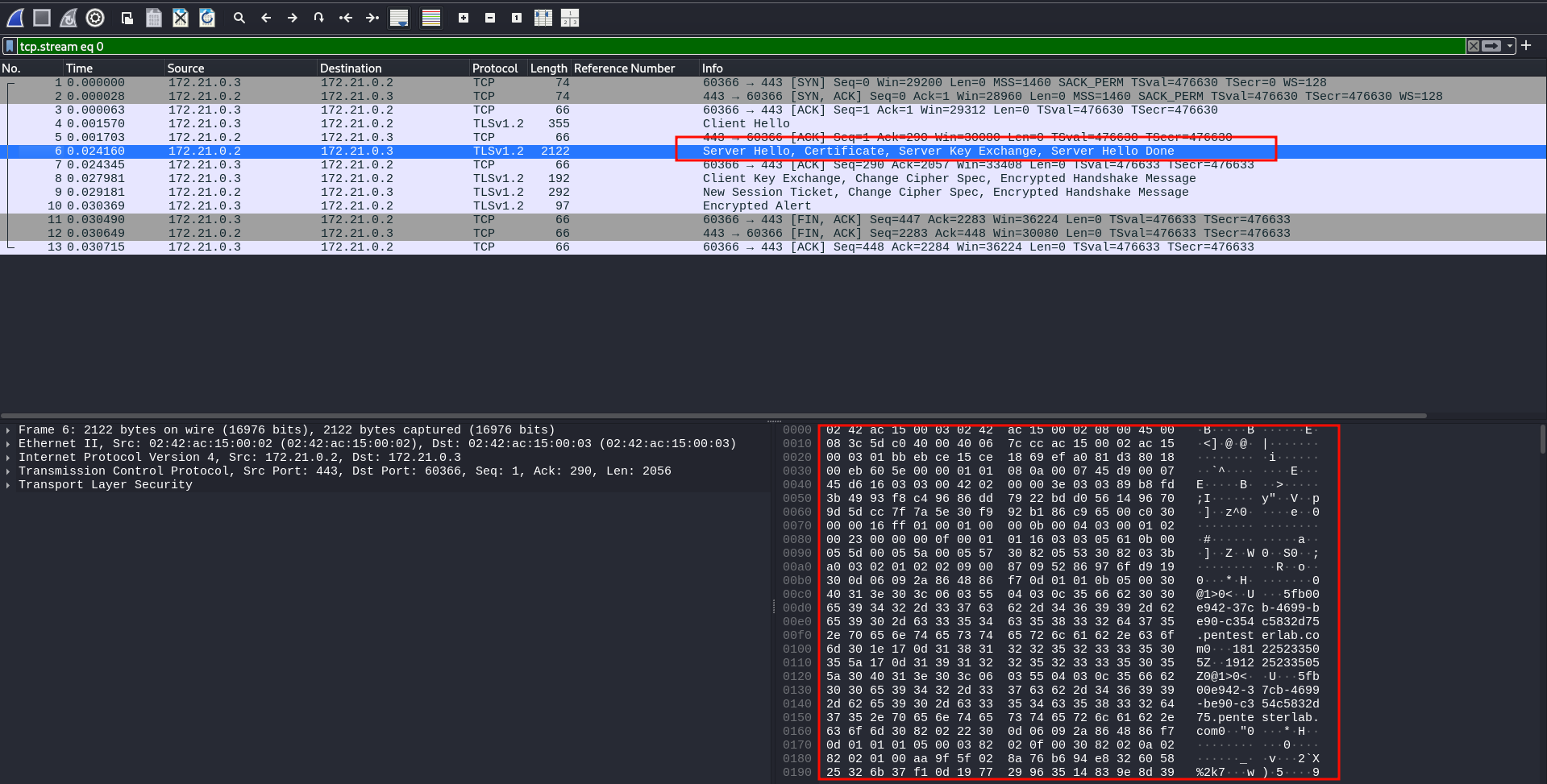
In this challenge, the file contains a TLS connection. The client is
connecting to the server and getting the certificate as part of the Server Hello (as a response to the Client Hello. In the Server Hello you can find a lot of information about the server, including the certificate and the Common Name (or CN) of the server's certificate. The key to solve this exercise is the CN (without .pentesterlab.com).
PCAP 31
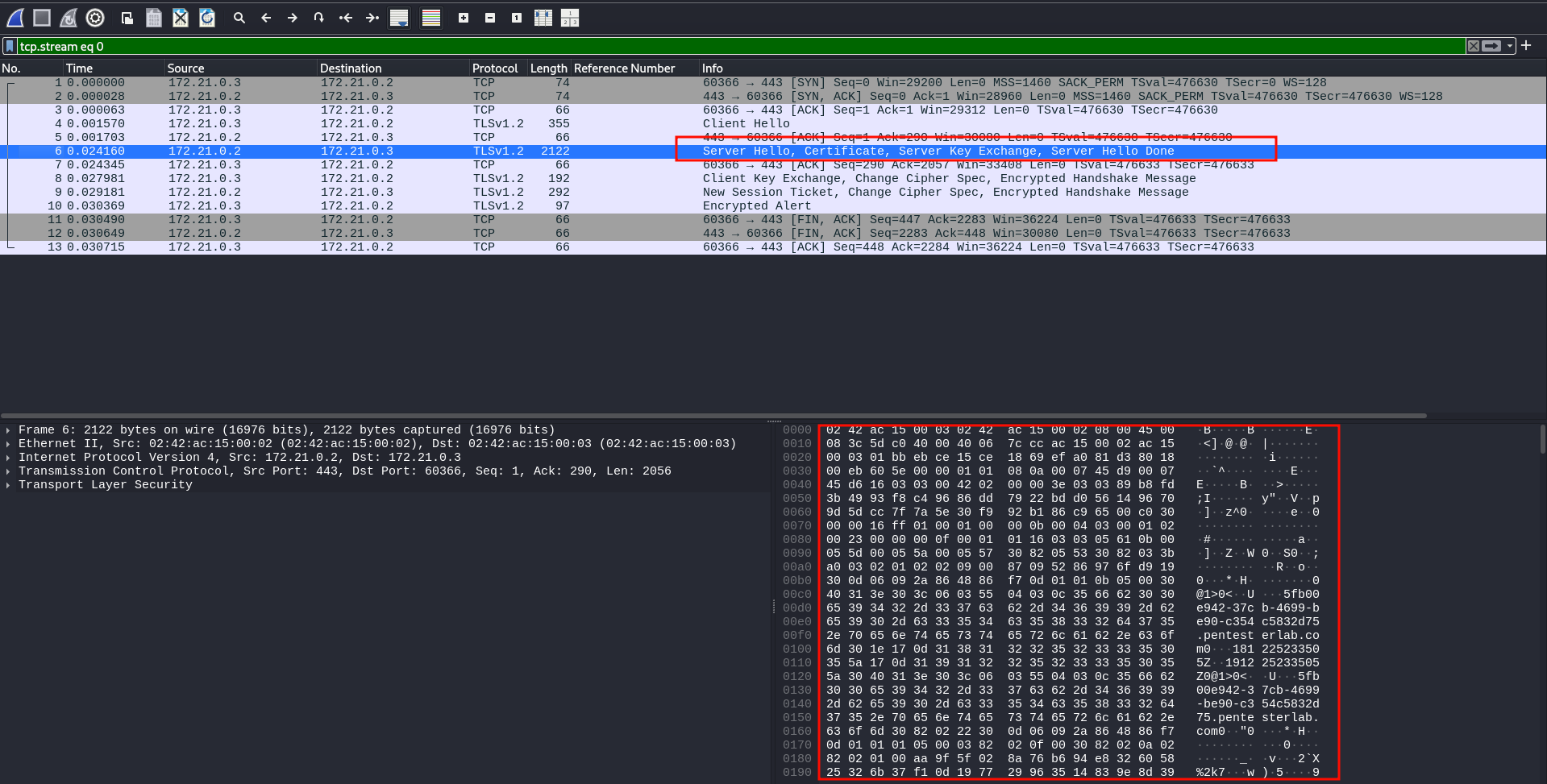
In this challenge, the file contains a TLS connection. The client is connecting to the server and sending a Client Hello.
Since a single IP may host multiple TLS server on the same port, the
server needs to know what certificate it needs to send to the client. If
the server sends the wrong certificate (for example by sending a valid
certificate for pentesterlab.com when the client tries to access ptl.io),
the client will reject it. However, there is no way at the TCP level to
know what TLS server the client tries to connect to. Thankfully, the
client can use a TLS extension named Server Name Indication or S.N.I. as part of the Client Hello. The key to this challenge is the S.N.I. value sent by the client (without .pentesterlab.com).
PCAP 32
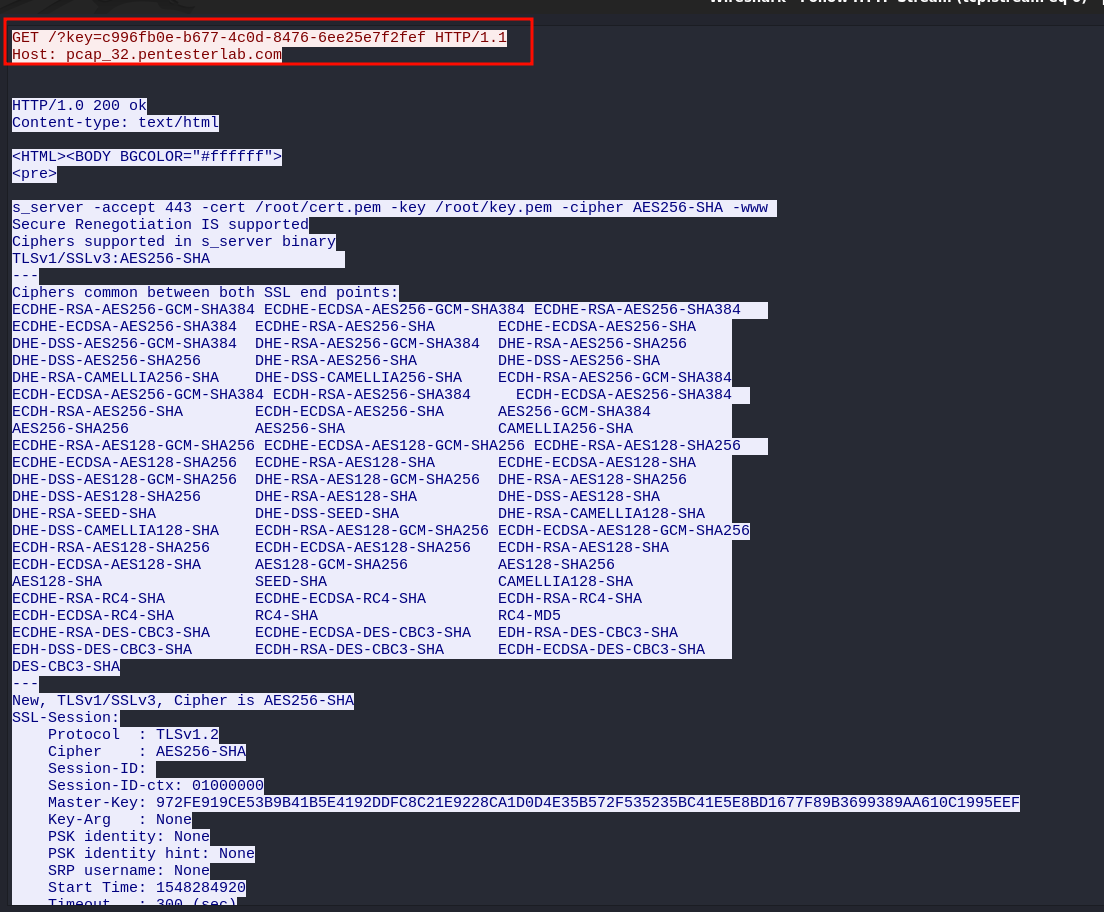
In this challenge, the file contains a TLS connection. The connection
is encrypted using TLS. However, you should be able to decrypt it using
the private key. To do so you need to select one of the TLS packets and
right-click to go to Protocol Preferences then RSA keys list. From there you can feed all the details: IP address, port, protocol (use http or tcp) and the server's private key pcap_32_server_private_key.pem. Once you click Ok, you should see the decrypted traffic that contains the key to solve this exercise.
You are able to decrypt this TLS connection because the server does not use Forward Secrecy. In the next challenge, we will look at how it can be done with Forward Secrecy.